User Account Control (UAC)
Introduction
User Account Control (UAC) is a security feature introduced in Windows Vista and present in all subsequent versions of Windows. It aims to prevent unauthorized changes to the operating system by requiring explicit confirmation before executing an action that requires elevated privileges.
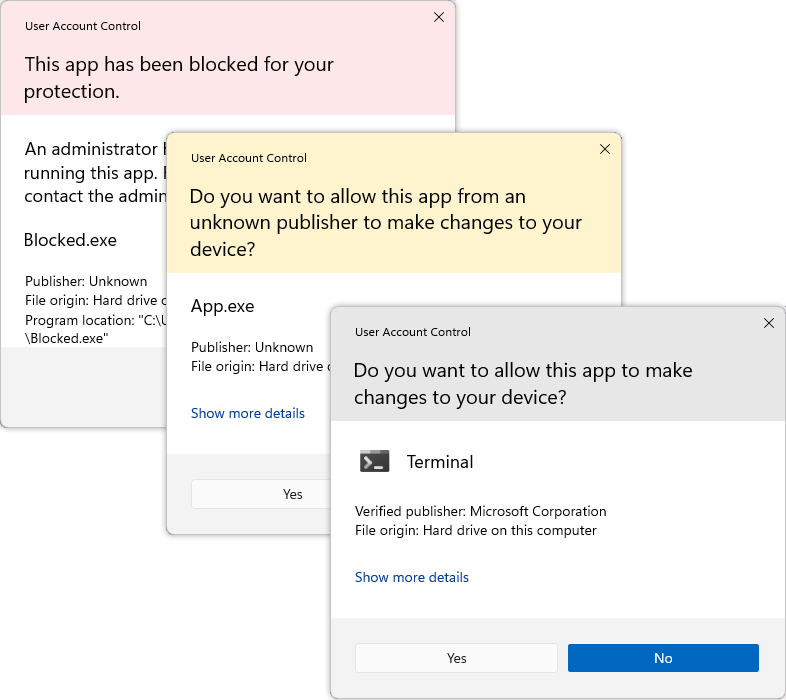
Objectives of UAC
- Limit the privileges of accounts, even administrators, until elevation is necessary.
- Prevent the silent execution of malware with administrator rights.
- Promote better separation between standard users and administrators.
- Reduce privilege escalation attacks.
How does it work?
-
By default, even administrator accounts run applications with standard rights.
-
When a task requires administrative privileges, Windows displays a UAC dialog box:
- If the user is an administrator, they can approve or deny.
- If the user is a standard user, they must enter the password of an administrator account.
-
The process is then relaunched in an elevated context.
Example actions requiring UAC elevation
- Install or uninstall a program
- Modify system or registry settings
- Add/remove user accounts
- Modify files in
C:\WindowsorC:\Program Files - Change firewall or security settings
UAC Notification Levels
UAC settings can be adjusted via Control Panel → User Accounts → Change User Account Control settings:
| Level | Description |
|---|---|
| Always notify me | Notification every time a program or you attempt to change Windows settings |
| Notify me only when apps try to make changes (dim the desktop) | UAC activates only for programs, not for manual changes |
| Notify me only when apps try to make changes (do not dim the desktop) | As above, but without the screen dimming effect |
| Never notify me | UAC is disabled — not recommended |
UAC Virtualization
To ensure compatibility with older applications (32-bit):
- The system can redirect certain writes in protected folders (like
C:\Program Files) to virtual folders (%LOCALAPPDATA%\VirtualStore). - This allows programs that assume elevated privileges to partially function even without admin rights.
Practical Tips
- Do not disable UAC except in specific test environments.
- Encourage the use of standard accounts for daily tasks.
- Use
runasor right-click → "Run as administrator" to occasionally launch programs with elevation.