Devices on Windows
Windows offers tools to manage your computer's devices. We will explore the Device Manager, system information, and hardware drivers.
Device Manager
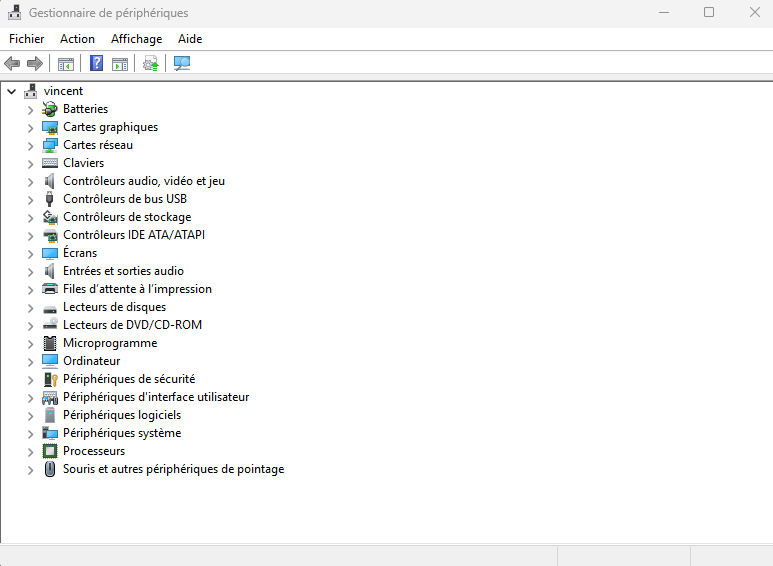
The Device Manager is a tool that allows you to view and manage the hardware devices installed on your computer. It lets you see installed devices, update drivers, uninstall devices, and troubleshoot hardware issues.
System Information
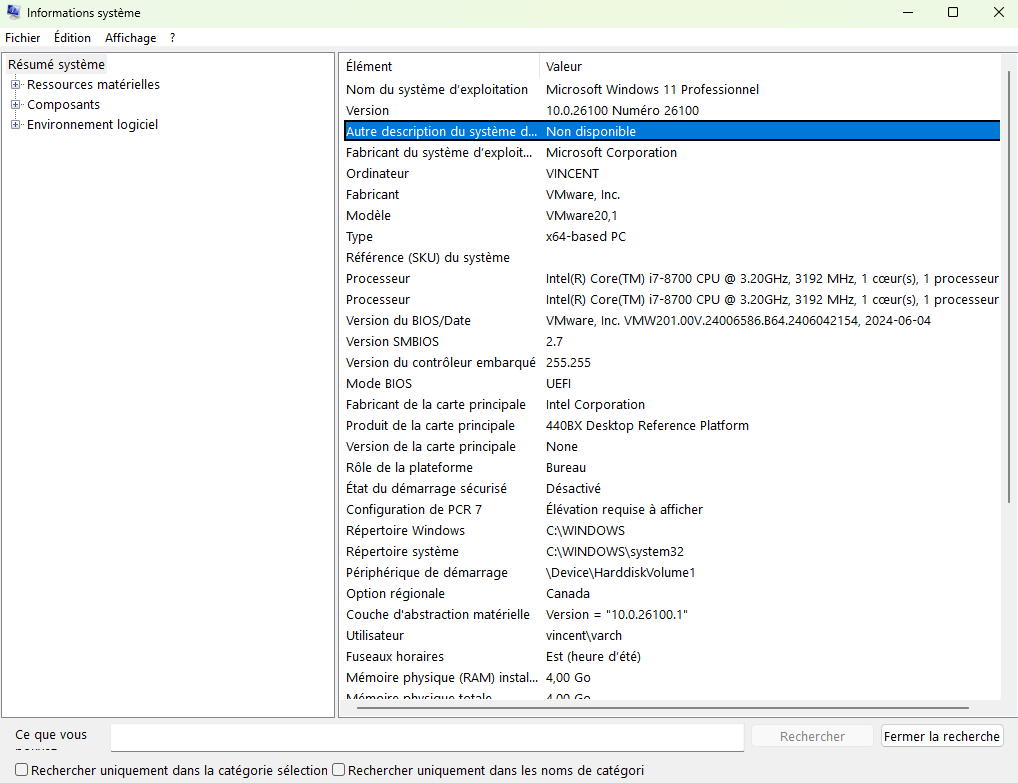
The System Information tool provides detailed information about your computer's hardware and software. It allows you to view information about the operating system, processor, memory, devices, and other hardware components.
Hardware Drivers
A driver is software that acts as an interface between the operating system and the hardware. It allows Windows to communicate with a given device (printer, mouse, graphics card, etc.) by translating the system's general instructions into specific commands understandable by the hardware.
The table below summarizes the roles of different components:
| Component | Driver Function |
|---|---|
| Hardware | Performs physical tasks (display, printing, sound...) |
| Driver | Translates Windows instructions into hardware language |
| Windows System | Provides a user interface and standard APIs |
Where are drivers stored in Windows?
Drivers are generally installed in:
C:\Windows\System32\drivers
Update and Installation
Often, Windows automatically detects devices and tries to find a compatible driver. This process is sometimes referred to as Plug and Play (PnP). If Windows does not find a driver, it may be necessary to download it manually from the hardware manufacturer's website.
Drivers can be updated in the Device Manager, via Windows Update, or downloaded from the hardware manufacturer's website.